Blackboard Student Check List
Accessing Blackboard | Quick Start Guide
Access to Blackboard Ultra (LMS)
Blackboard Ultra is the Learning Management System (LMS) at Stockton University. A LMS is used for most courses to provide class materials (lectures, presentations, readings, videos and more), communicate with your instructors and other students, submit your assignments, take quizzes and tests, view your course grades, and more.
How to Find Blackboard Ultra for Your Courses
- Start at the goStockton Portal and sign in using your portal username and password (image below).
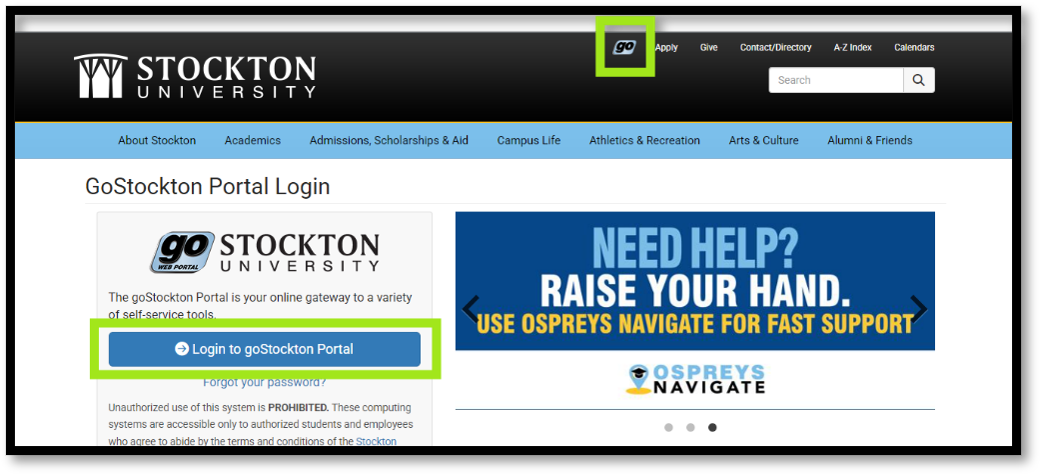
- Once logged into the portal, locate the Blackboard Quick Link icon at the top of the page or within Student Services tab (image below)
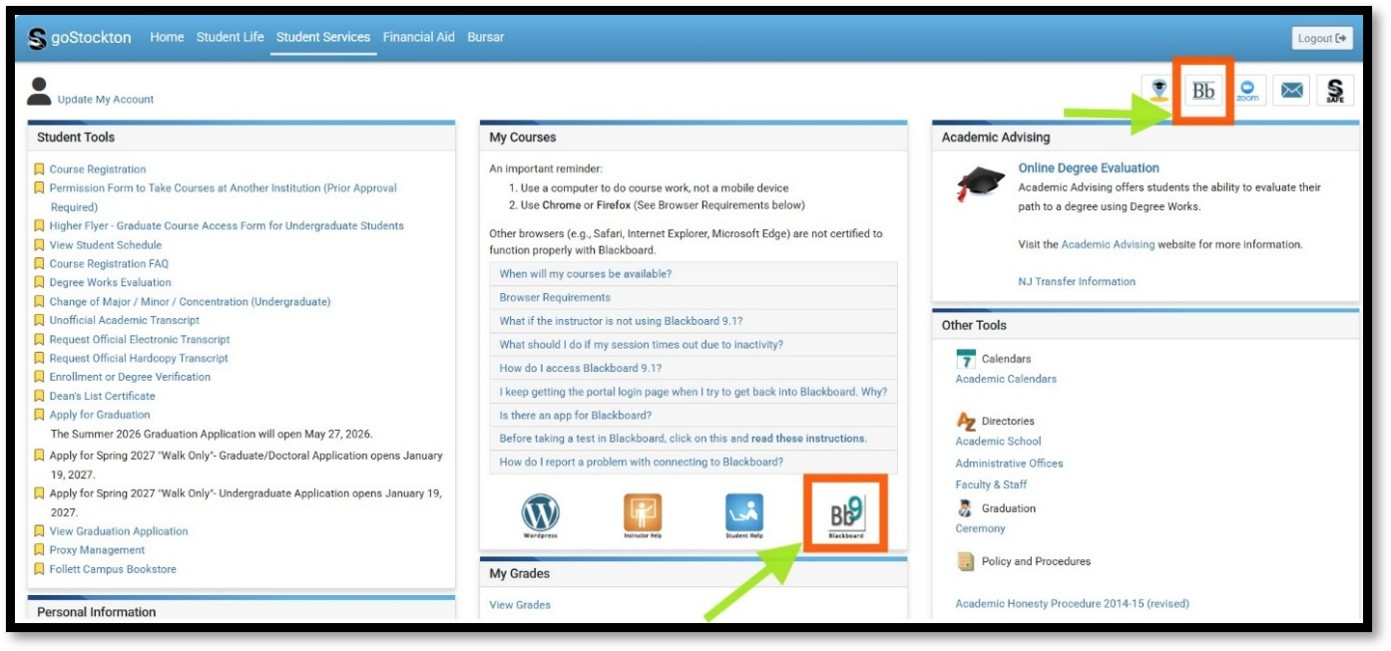
OR
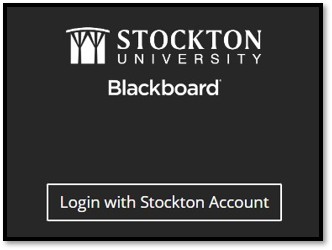
Go to Blackboard directly at blackboard.stockton.edu and sign in with your goStockton portal username and password (image below).
Multi Factor Authentication
When accessing goStockton Portal or Blackboard off campus, you will verify your identity using Duo Mobile.
 Download the Blackboard App (optional)
For mobile access to Blackboard, download the Blackboard LMS App.
Quick Start Guide to Using Blackboard Ultra
-
Check Your Technology
For best performance, run the Browser Checker to confirm your setup. If your browser isn't supported, update it or switch to one on the Supported Browsers list.
-
Set Up Blackboard Profile & Notifications
- Update your profile. After logging in to Blackboard, select your name in the navigation menu to open your profile. Go to Edit Your Profile to learn more about your Blackboard profile.
- Set up notifications. From your profile page or the Activity page, open Notification Settings to choose how and when Blackboard alerts you—by email, in your activity stream, or as push notifications on your mobile device. View Set Up Notifications for more information.
-
Find Your Courses on the Courses Page
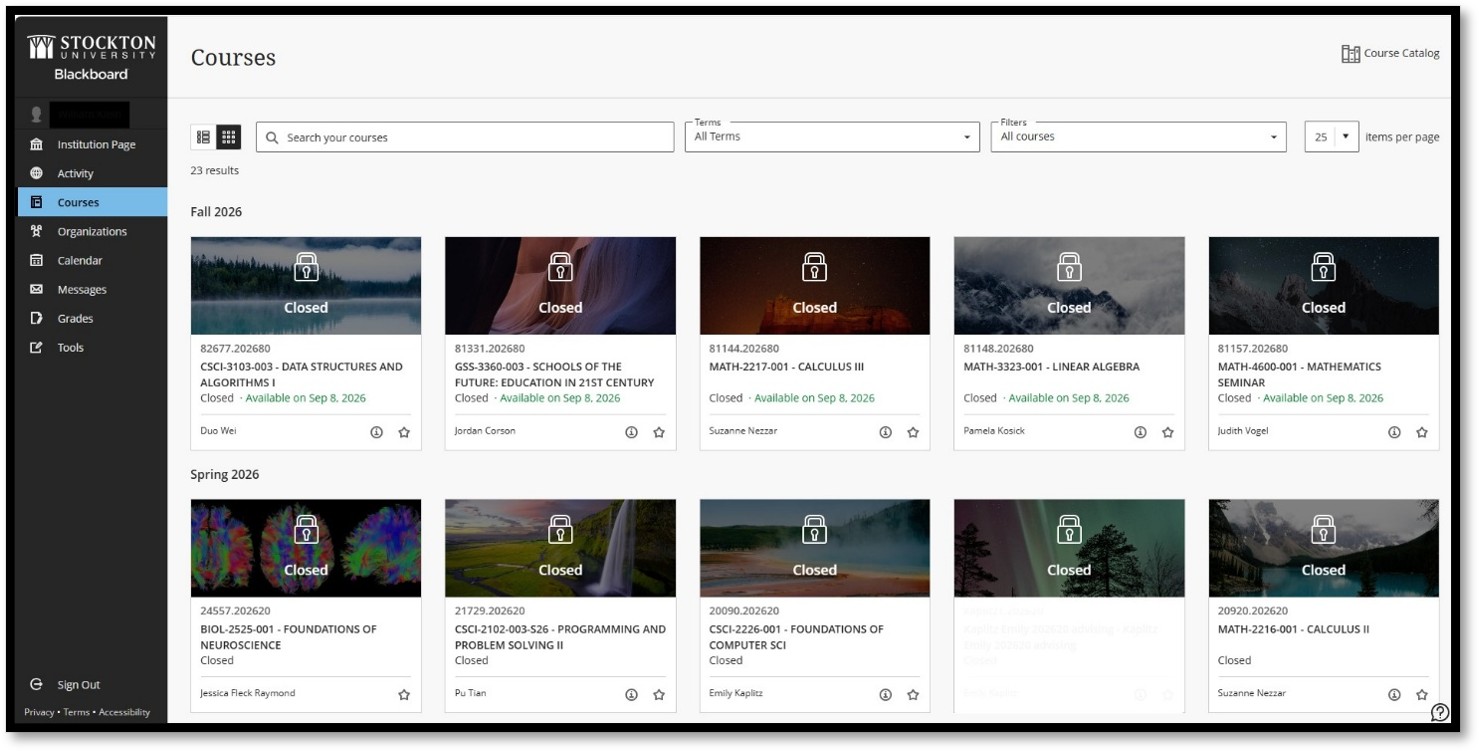
On the first day of the semester, your courses will be available on the Blackboard Courses Page (image below). Some instructors may provide earlier access to a course. Check your Stockton email for course information from your faculty.
-
Explore Your Courses
Review your courses to find important information to support your success as classes begin.
- Locate the course syllabus. Find the syllabus, course schedule, and any instructor contact information. Refer to Navigate Inside a Course for more information.
- Read announcements. Instructors may post important information before the semester starts. Open your courses and check the Announcements section.
- Review communication expectations. Check for your instructor's preferred contact method. If available, use Messages to contact your instructor directly within Blackboard.
- Locate assignments, tests, and discussions. Check for assignments, tests, and discussions in your course content. Go to Assessments and Discussions for more information.
- Locate your grades page. Go to the Grades page to check your grades and assignment feedback.